

Player Lister
Generate players’ names caption text from Pixnub Composites and Teams (CAT) stand alone app or EZ Team Builder-generated composites.
There is nothing better than Pixnub’s Composites and Teams (CAT) stand alone app or EZ Team Builder plugin to generate team composites. But when the school, league, yearbook editor, or newspaper copywriter requires a list of players corresponding to the photo, it can take you long time (with a lot of typos) to manually write the caption that matches the photo.
With the Player Lister Photoshop plugin, your player name caption is generated automatically from the composite (as long as you have named the photos with the players’ names).
What Player Lister does:
Player Lister analyzes a CAT or EZ Team Builder composite to determine the player’s names from the composite layers contained in each row of players and produces the caption in an editable field that can be copied and pasted into the email to the school, league, yearbook, or newspaper. No manual typing required, so as long as the player’s name was spelled right for the filename used by CAT or EZ Team Builder, the caption names will be spelled correctly.
Helpful features:
Player Lister checks to ensure the composite is a Pixnub CAT or EZ Team Builder generated composite.
Omits the different types of “top” and “bottom” placement codes as part of the layer name from the player caption.
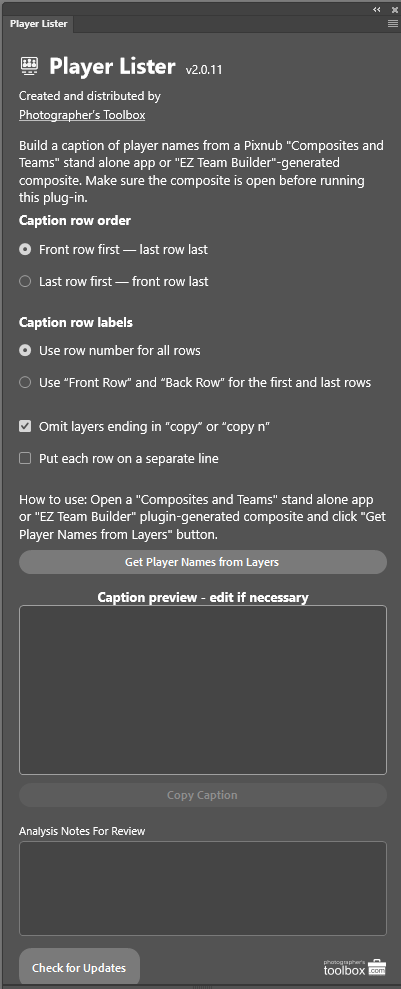
List players by beginning with first row or back row.
Use all row numbers for the caption or use “First Row” for row one and “Back Row” for the last row in the rear.
The completed caption information can be edited to accommodate unique punctuation or spelling not reflected on the layer name.
One click “Copy Caption” puts the caption string on the clipboard so you can paste it wherever you want it.
“Analysis Notes for Review” displays potential issues like missing row numbers, unnamed player layers, empty image bounds, repeated name within a row, rows with invalid player information, and two images that overlap.
“Check for Updates” opens a version check website to ensure you can download the current version.
How to use the Player Lister plugin:
Open any completed CAT or EZ Team Builder composite file where the layer names are the player names but before you add additional rows like shadows, reflections, or shading.
Press “Get Player Names from Layers” button. Player Lister analyzes the composite file and places the caption in the “Caption Preview - edit if necessary” text box.
Adjust capitalization, spelling, and punctuation elements as necessary then click “Copy Caption”.
Review the “Analysis Notes For Review” for any exceptions you should research in the composite.

Installation
The plugin is a regular Adobe Creative Cloud CCX plugin. Download the plug-in to a folder where you store you other CCX files and then double click on the CCX file. This will install the plugin to Adobe Creative Cloud on that computer and make it available to Photoshop. Since this is a manually installed plugin, you will need repeat the installation on any other computers where you have Photoshop installed.
FAQ
Q: The player name caption does not contain player names. It shows GotPhoto codes, original filenames, or other information that is not a player name.
A: The player image files that were used by CAT or EZ Team Builder were not named for the player/coaches. Rename the files to the player names as part of your workflow.
Q: I have extra “Player Names” that aren’t players. The names look like layers I use for shadows, reflections, or shading between rows.
A: Run “Player Lister” prior to adding shadows, reflections, or shading layers to polish your composite.
Q: I have moved a player image in the composite but the player’s name is still shown in the original row in the player name caption.
A: Most likely, the player image has been moved to a different row, but the player’s composite layer is still in the original row layer group. Move the player’s layer to the correct row and in the correct sequence of players for that row.
Q: How much does this handy tool cost?
A: There is no charge for this tool. You may not disassemble it or modify it. You may not re-sell it. Use it to make yourself a more efficient volume photographer.
Q: The plugin tool does not run.
A: Contact support at hello@PhotographgersToolbox.com for assistance with resolving the issue.